
Quick Create
Create your first staghorn fern profile
Before you start recording, remember: The purpose of recording isn’t perfect formatting—it’s about witnessing the power of growth.
Download
iPhone users can download Fern from the App Store.

Create Your First Profile
Tap ➕ to create a dedicated profile for your staghorn fern.
- More than just a form: We’ve preset tags for [Species], [Source], [Original Nursery], [Growth Stage], [Growth Status], and [Survival Status] to help you organize its history.
- Your rules, your way: If our preset tags don’t include your rare variety or niche nursery, don’t worry. Scroll to the bottom of options and tap “Add New Tag” to define your own collection system.
💡 Before you start, don’t forget to enable iCloud Sync
Record Growth
The joy of growing staghorns often lies in those tiny new changes.
Single Record
Spotted something exciting during a casual glance? Find the corresponding profile, tap ”+ Record New Status”, and capture that moment of delight.
Batch Import Photo Records
Have a pile of old photos that haven’t been organized? Find the corresponding profile, select all photos of this plant from different periods at once, and Fern will automatically arrange them on the timeline based on each photo’s EXIF timestamp.
How to:
- Find the staghorn fern you want to edit (you can search by name)
- In Fern, find the plant → Settings on the right → Import Photos → Select photos
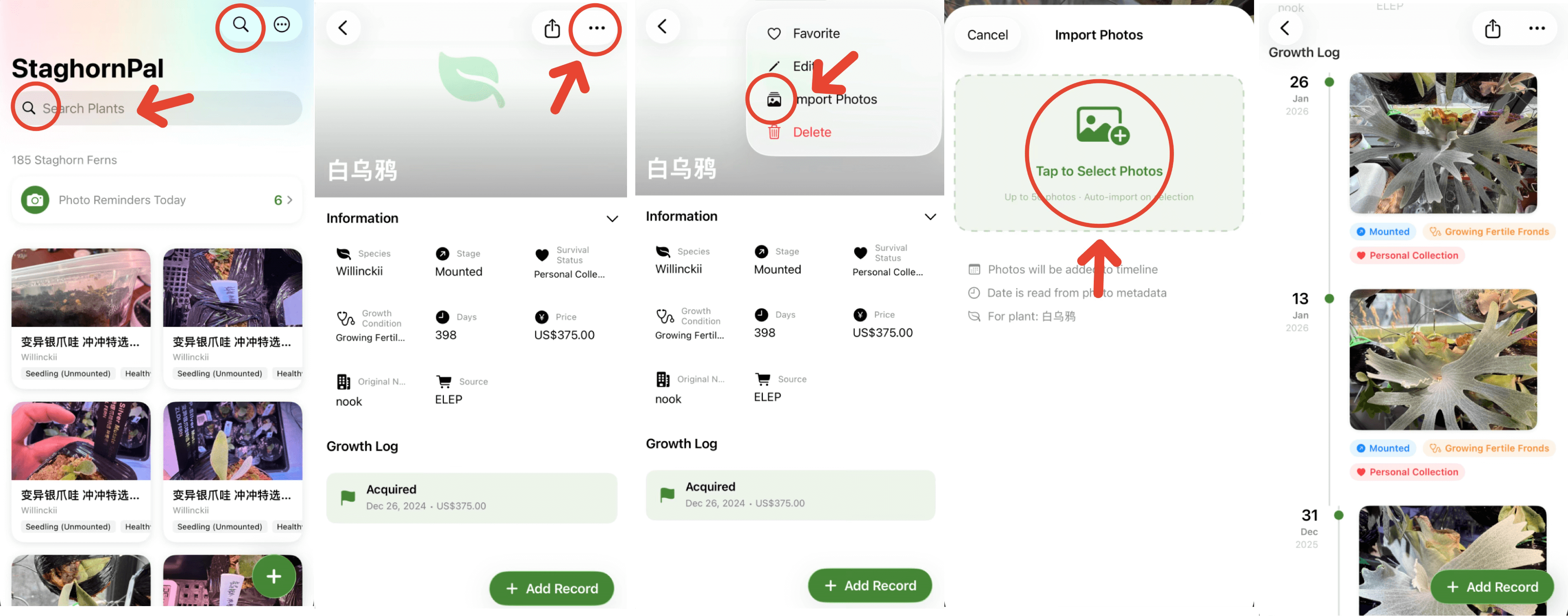
❗ Batch import is a Premium feature
Cover Settings
The cover is the face of each staghorn fern profile. Fern offers multiple ways to edit covers—customize the display however you like:
Dynamic Cover (Default)
If you prefer a hands-off approach, the app will automatically grab the photo from your latest record as the cover. It updates automatically as your plant grows, so you always see its current state at a glance.
How to:
- In Fern, find the plant you want to edit → +Record New Status → Add photo
⚠️ Note: If you delete the auto-grabbed growth record photo, the cover will also be deleted
Static Cover (Manual)
If you want it to always display that peak “glamour shot,” we recommend setting it manually. The benefit is that a manually set cover is independent—even if you delete the corresponding record photo, the cover remains.
How to:
-
When creating a new profile, manually add a cover
- In Fern: Tap ”➕” → Add Cover
-
Add later
- Edit profile: In Fern, find the plant → Tap ”···” → Edit → Add Cover
- Set from record: In Fern, find the plant → +Record New Status → Add photo → Tap the photo → Bottom left button → Set as Cover
💨 Now go observe your staghorn ferns—leave the rest to Fern